Guide
What to consider before a digital signage rollout
A signage rollout has four strands: the places, the hardware, the content and the people who keep it running. What to decide before you order, how content reaches a screen, and a checklist for your supplier conversation.
6 minute readPublished
A rollout is more than screens on walls
Digital signage projects rarely fail because of the screen. They fail because nobody owns the content, the network was not ready, or twenty sites were installed before anyone checked that the first one worked. A rollout is a small programme of work with four strands: the places, the hardware, the content and the people who keep it running.
This guide sets out what to decide before you order, and ends with a checklist you can take into a supplier conversation.
Work through the rollout in order
Define the purpose
Decide what each screen is for: promotion, menus, information, wayfinding or queue calling. Purpose sets the size, position and content.
Survey every position
Record light levels, viewing distance, fixing surface, power and network for each screen, with photographs.
Choose hardware by environment
Indoor, window-facing and outdoor positions need different brightness and protection. Standardise on as few models as you sensibly can.
Decide how content gets there
Pick the playback and content management method before ordering, because it determines the platform inside the screen.
Pilot one site
Install, load real content and live with it. Fix what you learn in the specification, not site by site.
Roll out and hand over
Install in batches, record what is where, and hand over with named owners for content, hardware faults and the network.
Ways to get content onto a screen
| Method | How it works | Suits | Limits |
|---|---|---|---|
| USB standalone playback | Media files are copied to a USB stick and play in a loop | A single screen with content that rarely changes | Someone must visit the screen for every change, and nothing is scheduled across sites |
| Built-in Android or Windows platform | The display runs player software and receives content over the network | Estates that need scheduling, grouping and updates from one place | Needs a reliable network and content management software scoped for the project |
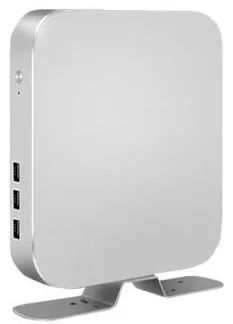
| External media player | A separate Android or PC player feeds the screen over HDMI | Video walls, existing screens and positions that need more processing | Another device to mount, power and look after |
| HDMI input from another source | The screen shows whatever a connected device sends | Mirroring a till, a PC or a broadcast source | The screen depends entirely on that device |
Scroll sideways to see the whole table.
Platform options vary by range. Android, Windows and USB playback are described for several display ranges and confirmed for your configuration.
Choosing screens for each position
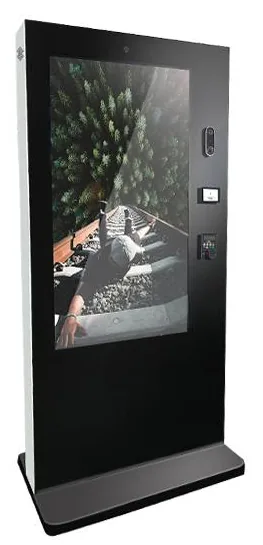
Group your positions by environment first. Indoor freestanding and wall-mounted displays are described at 300 to 450 nits, the shop window range at 1,000 to 2,500 nits, and the outdoor range in 1,500 to 2,500-nit configurations with weather protection confirmed per model. Our guide to indoor, window and outdoor displays explains the differences.
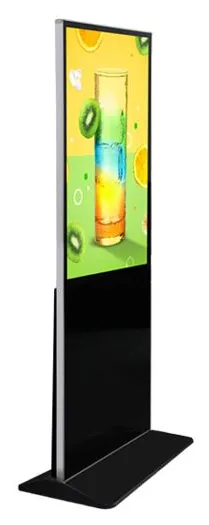
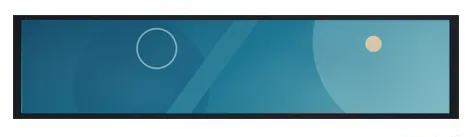
Then look at format. Menu boards, stretched bar displays, lift screens, double-sided displays and transport screens each solve a particular position. The fewer distinct models and orientations you use, the easier content production and spares become.
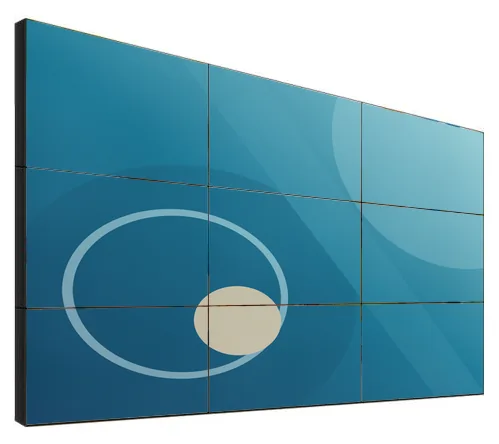
Video walls have visible bezels
An LCD video wall is built from separate panels, so there is always a visible line where panels meet. Bezel widths are catalogue-stated figures, and it is unconfirmed whether they describe a single panel edge or the combined join between two panels, so ask for the figure that applies to the finished wall. Keep faces and small text away from the joins, and allow for a processor or matrix to split the picture.
Content is the running cost you control
A screen with stale content is worse than a poster. Before ordering, name the person who owns content, decide how often it changes and agree who approves it. Templates for prices, offers and notices make routine changes quick and keep the brand consistent.
Produce artwork to the actual pixel size and orientation of each screen. Full HD is 1920 × 1080 and 4K UHD is 3840 × 2160, but some ranges are described only as Full HD or 4K-class, and wide formats use non-standard sizes, so have the exact resolution confirmed before design work starts. Plan schedules by time of day and by location, and decide what each screen shows if it loses its connection. Think about readability too: large type, strong contrast and enough time on screen for a message to be read from the furthest viewing point.
Network, power and security
Every networked screen needs a connection your IT team is happy with. Decide between wired and wireless connections, ask which addresses and ports the player software must reach, and keep signage devices on a suitable part of the network. Mobile data connections are described for some media players and transport screens, which helps where there is no building network.
Check that sockets are where the screens will be, not a cable run away, and whether screens should switch off outside opening hours. Agree who holds administrator passwords, how software updates are applied, and how a lost or replaced device is removed from the system.
Managing many screens and sites
As the estate grows, organisation matters more than technology. Give every screen a clear name and location, group screens by site and purpose, and give local managers only the control they need. Decide how you will know a screen has gone dark: a person checking each morning, or monitoring that can be scoped into device management software.
Content management for signage is scoped around your requirements rather than sold as a fixed package. The digital signage CMS page explains what can be included. Hardware, software development and ongoing management are quoted separately.
Rollout checklist for a supplier conversation
- A list of every screen position with its purpose, environment, viewing distance and photographs
- Fixing surface and load for each wall, ceiling or floor position, and who carries out the fixing
- Power and network availability at each position, and who provides anything missing
- Brightness, exact resolution and orientation confirmed for each selected model
- The playback method for each screen: USB, built-in platform, external media player or HDMI input
- Who creates, approves and schedules content, and in which file formats and sizes
- What each screen displays when it is offline
- How screens are named, grouped and assigned to users across sites
- How faults are noticed and reported, and whether spare units are held
- Operating system version, update policy and password ownership
- A pilot site, its success measures and a date for reviewing it
- Installation sequence, access arrangements and working hours at each site
- Warranty, support and management terms as set out in the quotation
Next steps
Start with the survey list, even if it is a spreadsheet and a folder of phone photographs. Our digital advertising page shows how hardware, software and your process fit together, and installation and rollout describes how site work is planned. Request a quote when your positions are listed.