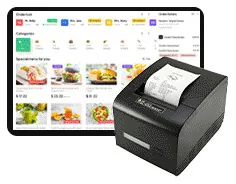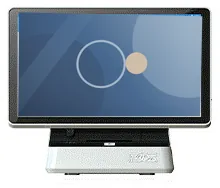
Restaurant POS / Cashier Station
The staffed order and payment point in a restaurant ordering system, scoped together with your kiosks, kitchen screens and collection displays.
Solutions
Orders now arrive from more than one place: the counter, a self-service kiosk and, in some restaurants, the table. If those routes are not joined up, staff re-key orders, tickets go missing and customers ask the counter where their food is.
A restaurant workflow connects each ordering point to the kitchen and to the collection point, so every order follows the same path whoever took it. The hardware is the straightforward part. How the system behaves is what needs agreeing.
Illustrative configurations
Dashed items are optional
Full workflow4 components, 1 optional
Printer-led workflow4 components, 1 optional
Compact workflow3 components, 1 optional
| Configuration | Components | Example fit |
|---|---|---|
| Full workflow | Cashier station, ordering kiosk, kitchen display with printer, collection screen and optional menu boards | For example, a busy counter-service restaurant that wants orders on a kitchen screen and customers watching for their number. |
| Printer-led workflow | Cashier station, ordering kiosk, kitchen printer, collection screen and optional menu boards | For example, a kitchen that prefers paper tickets but still wants a collection screen front of house. |
| Compact workflow | Cashier station, ordering kiosk, kitchen printer and optional menu boards | For example, a small takeaway where staff call out orders as they are ready. |
Scroll sideways to see the whole table.
Illustrative configurations only. Every component and quantity is confirmed in your quotation.
Step 1Customer browses and places an order
At a kiosk, the counter or a table QR code, as scoped.
Step 2Payment is completed
Through the configured method, where required.
Step 3Order reaches the kitchen workflow
Kitchen display and/or printer.
Step 4Staff prepare and update the order
Its status changes as it progresses.
Step 5Collection screen shows the status
Where a collection screen is part of the set-up.
Step 6Customer collects the order
Handed over at the counter or collection point.
Routing, printing, payment and collection behaviour depend on the agreed integration. Print timing is configurable.
At a self-service kiosk, or with a member of staff at the cashier station.
At the kiosk through your payment provider's terminal, or at the counter. Some sites take payment on collection instead.
It appears on a kitchen display, prints on a kitchen printer, or both, depending on the configuration.
With a kitchen display, staff mark the order as in progress and then ready. In a printer-led kitchen the update is made at the counter.
Where a collection screen is part of the system, the order number moves from preparing to ready.
Staff hand over the order and clear it from the screen.
Routing, printing, payment and collection behaviour all depend on the agreed integration. None of it is fixed by the hardware.
Print timing is configurable. A kitchen ticket can print when the order is placed, or when preparation is finished, for instance as a label for the bag. Tell us which suits your kitchen, or whether different stations need different rules.
Other order sources can be scoped too. Table ordering by QR code and tablet ordering can feed the same kitchen workflow if your project calls for them.
A staffed position for counter orders and queries. Whether it runs your existing till software or software scoped for the project is decided during scoping.
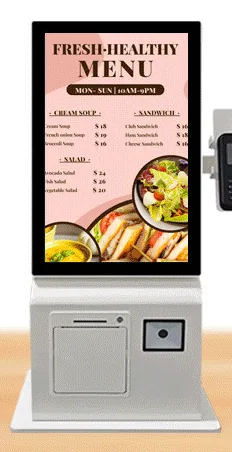
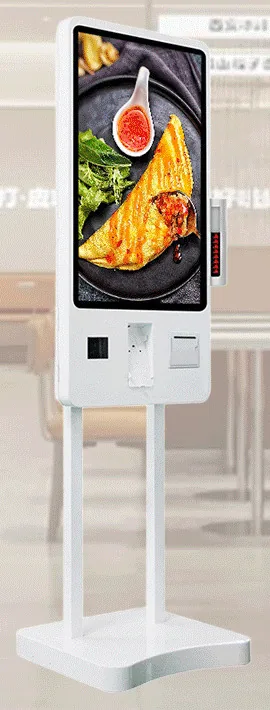
Countertop, wall-mounted or freestanding kiosks where customers place their own orders.
A touchscreen in the kitchen that shows incoming orders and lets staff update their status.
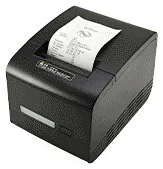
A thermal printer for tickets or bag labels, used alone or beside a kitchen display.
A customer-facing display showing which order numbers are being prepared and which are ready.
Optional in every configuration. They can be scoped to share menu data with the kiosk.
What this includes — and what it does not
Kiosk Craft supplies and configures the hardware, and designs and builds the ordering and kitchen workflow software around your restaurant. Hardware, software development and ongoing management are quoted separately.
No finished restaurant platform is implied, and we make no promise of compatibility with any named till or payment system. Card terminals and merchant services come from your payment provider. What can be connected depends on the agreed scope and on what each third party makes available.
The staffed order and payment point in a restaurant ordering system, scoped together with your kiosks, kitchen screens and collection displays.
A kitchen touchscreen that shows incoming orders from kiosks and tills. Hardware and software are scoped together, with or without a kitchen ticket printer.
Digital menu boards
Collection screens that show customers which orders are being prepared and which are ready, linked to your kiosks, tills and kitchen.
Mounts and peripherals
Printers, scanners, NFC readers, card-terminal brackets and custom modules for ordering kiosks — compatible options chosen per design, not universal fittings.
Countertop kiosks
Compact self-service ordering terminals for counters and reception desks. Nine designs with 15.6, 21.5 and 24 inch screen references.
Freestanding kiosks
Freestanding self-service ordering kiosks in fourteen enclosure styles, from slim pole stands to full-height towers, with 15.6 to 32 inch screen references.
Digital menu boards
Single or multi-screen digital menu boards for counters and collection points, built from our display families and paired with content management scoped to you.
No. The three configurations are illustrative starting points. A small site may need only a cashier station, a kiosk and a kitchen printer, and a kitchen display, collection screen or menu boards can follow later if the software is scoped with that in mind.
Print timing is configurable. Some kitchens want a ticket as soon as the order is placed, and others want it when preparation is finished, for example as a bag label. We agree the rule with you during scoping.
We make no promise of compatibility with any named till or payment system. It depends on what your suppliers make available for integration, which we assess during scoping before you commit to hardware.
Tell us how orders are taken, prepared and collected today. We will suggest a configuration to start from and scope the software separately from the hardware.