Guide
How to choose a self-service kiosk
Start from the task and the location, then work through screen size, mounting, touch, peripherals, software, rollout and support. Includes a checklist to take to a supplier conversation.
7 minute readPublished
Start with the task, not the screen
A self-service kiosk is a small system, not a single product: an enclosure and touchscreen, perhaps a printer, a scanner and a bracket for a card terminal, and software that connects it all to the way your business takes orders, payments or bookings.
Begin by writing one sentence that describes the job: who uses the kiosk, what they need to finish, and what happens next in your business. "Customers order and pay for takeaway food, and the order goes to the kitchen" leads to a very different kiosk from "visitors find a department and print a pass". Then note where it will stand: indoors or outdoors, on a counter, a wall or the floor, and how close to power and a network connection.
Match the task to a type of kiosk
| Task | Where to start | What to check early |
|---|---|---|
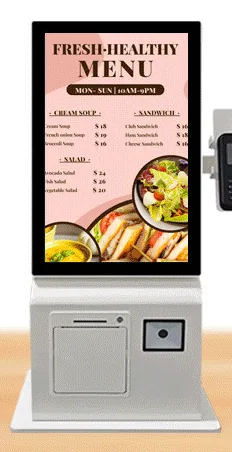
| Ordering and paying at a counter | Countertop ordering kiosks, pictured in 15.6, 21.5 and 24 inch designs | Counter depth, cable routes and staff sight lines |
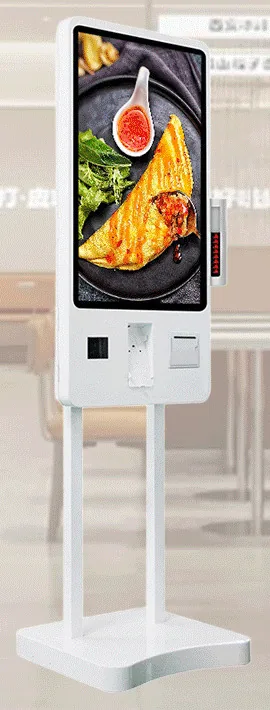
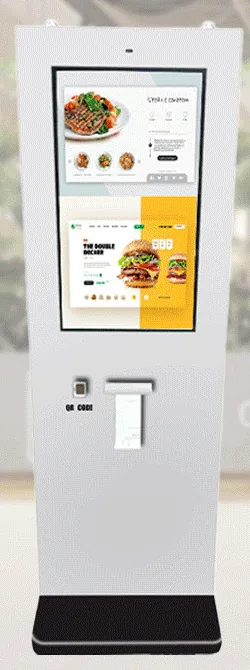
| Ordering in a queue or entrance area | Freestanding ordering kiosks (15.6 to 32 inch designs pictured), or wall-mounted units where floor space is tight | Queue direction, floor or wall fixing, and a clear approach for wheelchair users |
| Ordering or paying outside | Outdoor freestanding and outdoor wall-mounted payment kiosks | Sunlight, shelter, fixing and the environmental rating of the selected model |
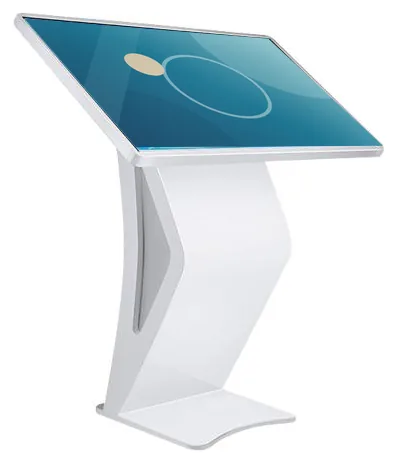
| Information, wayfinding and directories | All-in-one information kiosks, listed from 21.5 to 98 inch, and interactive touch tables | Viewing distance and how content is kept current |
| Visitor, guest or patient check-in | Information kiosks, or compact units where a scanner or printer is needed | Which system holds the booking and how the kiosk connects to it |
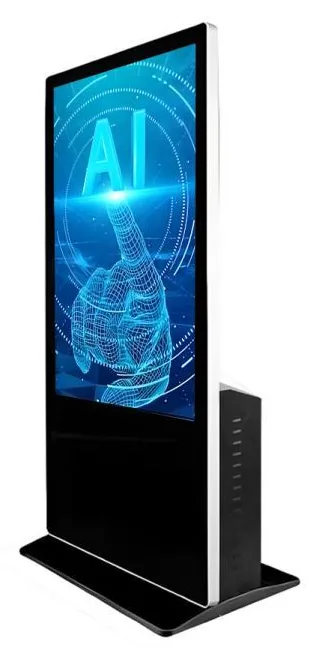
| Conversational or camera-led interaction | AI interaction kiosks, recommended in 43, 49 and 55 inch sizes with a built-in camera and microphone | Privacy, consent and exactly what the software is expected to do |
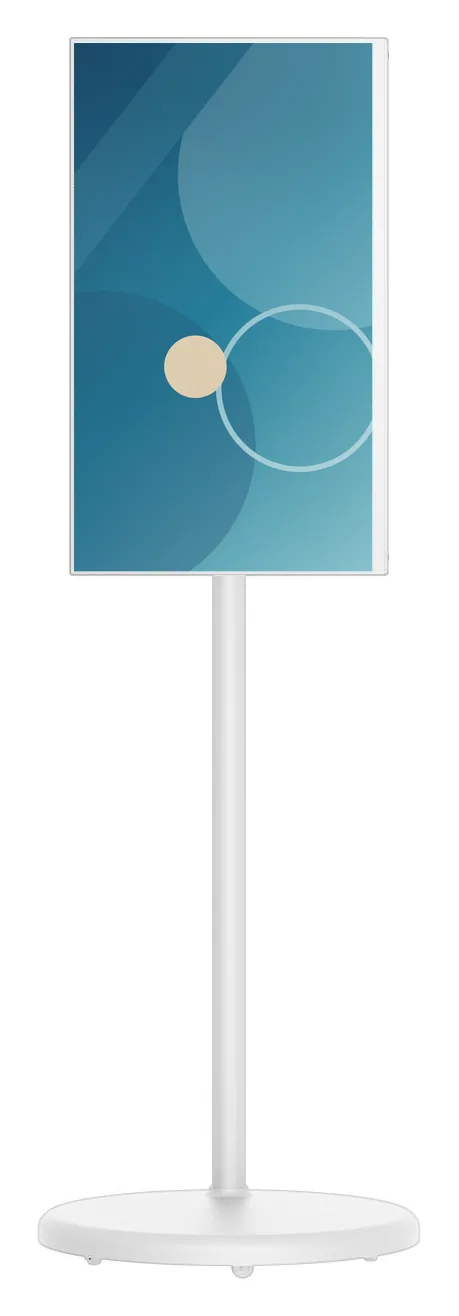
| Pop-ups, events and temporary positions | Portable battery touchscreen displays in 21.5 to 32 inch sizes | Battery runtime is a catalogue-stated estimate that depends on configuration and usage |
Scroll sideways to see the whole table.
Each range has its own category page: countertop, wall-mounted, freestanding, outdoor, information and wayfinding, AI interactive and portable. If you are deciding between the first three, read our guide to countertop, wall-mounted or freestanding kiosks.
Choose the screen size from the content
Screen size should follow the content and the distance, not the other way round. A short menu with large buttons works well on a 15.6 or 21.5 inch screen at arm's length. A long menu with photographs and modifiers is easier to use on a 24, 27 or 32 inch portrait screen, where more items fit without scrolling.
Portrait suits menus and lists. Landscape suits maps and forms. Bigger is not automatically better: a large screen on a narrow counter blocks sight lines, and controls at the top of a tall portrait screen can be out of reach for a seated user. Ask for the interactive area to be designed within comfortable reach, whatever the panel size.
The ordering kiosk range is described from 15.6 to 43 inch at range level, with 15.6 to 32 inch designs pictured. A size range does not prove that every size is offered in every enclosure, so treat the enclosure design and the screen size as one decision.
Touch: the questions that matter
The ordering kiosk range is stated with 10-point projected capacitive (PCAP) touch, the glass-fronted technology familiar from phones and tablets. Larger information kiosks are listed with infrared or PCAP touch. Most ordering software only uses one touch point, so ask practical questions instead. Does the screen respond reliably with damp hands or gloves? Is the glass easy to clean?
Peripherals: decide what the kiosk must physically do
Receipt and ticket printer
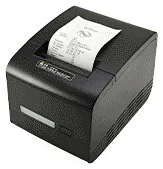
An 80 mm thermal printer with an easy paper-roll change is stated for the range. Decide what is printed and who replaces the paper.
QR and barcode scanner
Used for vouchers, loyalty codes, booking references and app-based payment codes. Confirm which code types your process depends on.
NFC reader
An option alongside the scanner. It reads compatible cards and tags, for example for membership or staff identification. It is not a bank-card payment device by itself.
Payment-terminal bracket
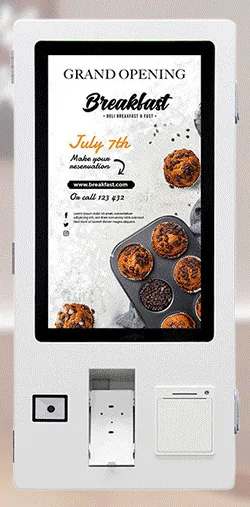
Shown on the side or front of the kiosk, depending on the design. The terminal comes from your payment provider, and the bracket must suit that terminal's shape and cabling.
Camera and microphone
Available by customisation on ordering kiosks and built in on the AI interaction range. Specify them only when the software has a clear, lawful use for them.
Cash, coin and card dispensing
Custom-build options. They add size, servicing and cash-handling procedures, so assess them as a project of their own.
What this includes — and what it does not
A bracket or a reader is not payment acceptance
A payment-terminal bracket is a piece of metalwork. It does not prove compatibility with every terminal model or payment provider. An NFC reader does not, by itself, establish bank-card acceptance. And a picture of a kiosk with a card terminal fitted does not mean the terminal is included.
Card terminals and merchant services come from your payment provider unless separately agreed, and connecting kiosk software to the terminal follows the provider's own integration process. Name your provider at the start. Our payment kiosks page explains the approach.
Software decides whether the kiosk works for your business
Hardware capability does not mean the software integration already exists. A scanner can read a voucher code, but something must check that code against your voucher system.
List the systems the kiosk must exchange information with, such as your till, stock, bookings or loyalty records, and find out whether each offers a documented way to connect. Decide who will change menus, prices and screens day to day. Then agree the platform: kiosks are offered in Android or Windows configurations, and the supported platform version is confirmed with your quotation.
Kiosk Craft scopes and builds bespoke kiosk software per project, including integrations and, for food service, restaurant ordering. For the business process around the kiosk, see self-service ordering.
Plan the rollout and the support before you order
A kiosk needs power, a network connection, a fixing method and somebody responsible for it. Wall-mounted units need a wall that can carry them, freestanding units may need floor fixing, and outdoor units need groundworks and a protected supply. With several sites, pilot one first, then repeat the agreed configuration.
Ask how faults are reported, who holds spare paper rolls and how software updates are handled. Hardware, software development and ongoing management are described and quoted separately, and the agreed warranty and support terms are set out in your quotation. See installation and rollout and support and maintenance.
Questions to take to a supplier conversation
- What does the customer need to complete at the kiosk, and what happens in the business afterwards?
- Is this enclosure design offered in the screen size and orientation we want?
- Which peripherals are included in this configuration, and which are options or custom work?
- Does the payment bracket suit the terminal our payment provider supplies, and who fits and cables it?
- Which operating system and version will be supplied, and how are updates handled?
- Which of our existing systems must the software connect to, and does each have a documented interface?
- Who can change menus, prices and images, and how quickly does a change reach the kiosk?
- What happens if the network connection drops part-way through an order?
- What power, network and fixing preparation is needed before installation day?
- What warranty, support and update terms are written into the quotation, and what is quoted separately?
Where to go next
Find your solution narrows the ranges in a few questions, and compare lines up products of the same type. When you are ready to discuss a specific site, request a quote and tell us the task, the location and the systems involved.